
Welcome to Recharge
We’re happy and grateful to have you on board.
As a business customer with Recharge, you get access to a dedicated portal where you can easily manage employees, vehicles, and RFID cards, as well as get a full overview of charging activity.
Once the business account has been created, you as the administrator and all the possible employees who have got a Recharge profile, will receive an email with a link to complete the setup of your profiles.
As an administrator, you will get access to both the Recharge app and the Business Portal, while employees will have access to the Recharge app.

Two types of profiles
There are two ways to create profiles in the portal:
either for employees or for vehicles.
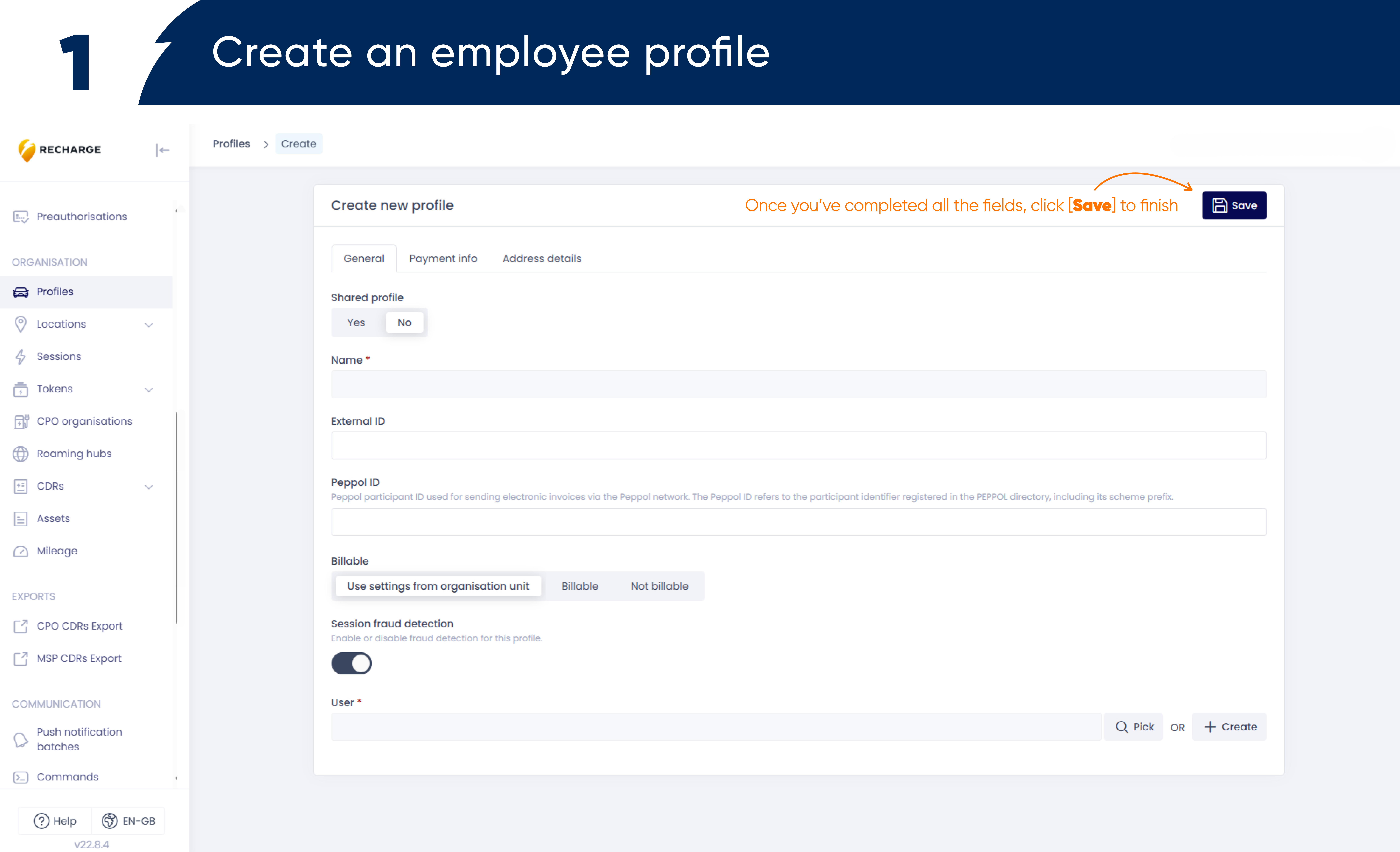
Create an employee profile
Step 1
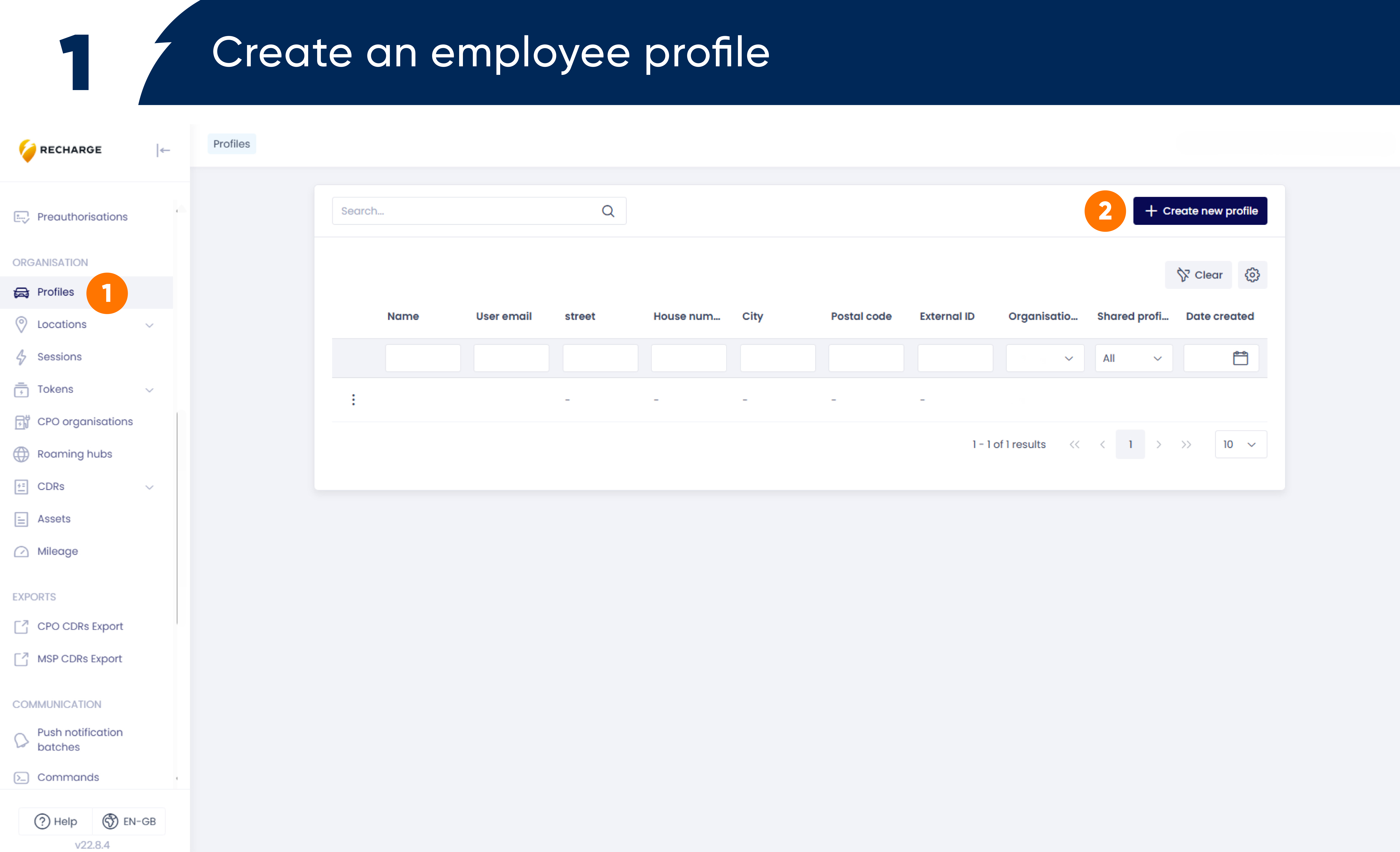
In profiles – create an employee profile by clicking [+ Create new profile]
Step 2
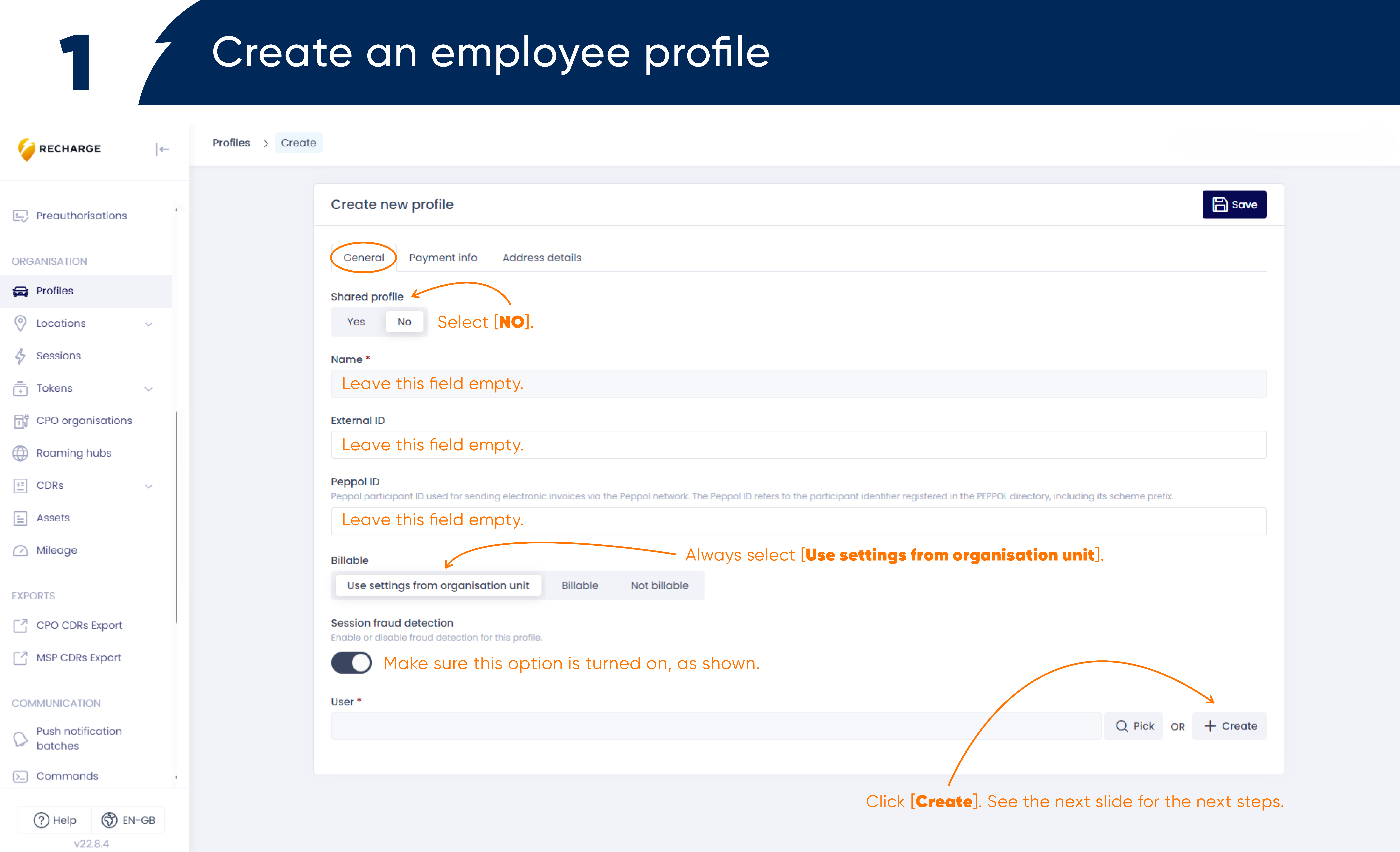
Follow the steps, fill out the form fields, and click [+ Create]
Step 3
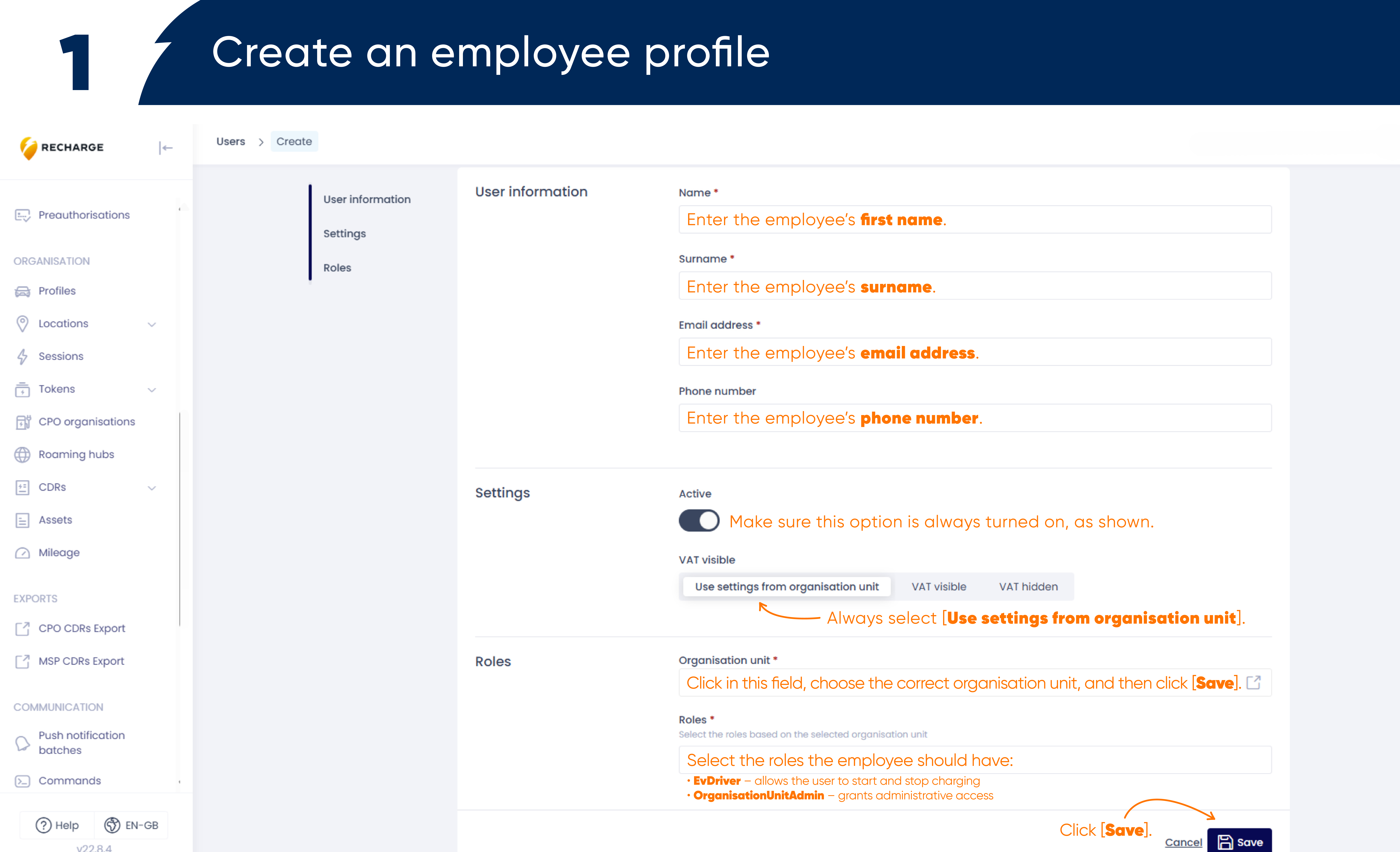
Follow the steps, fill out the form fields, and click [Save]
Step 4
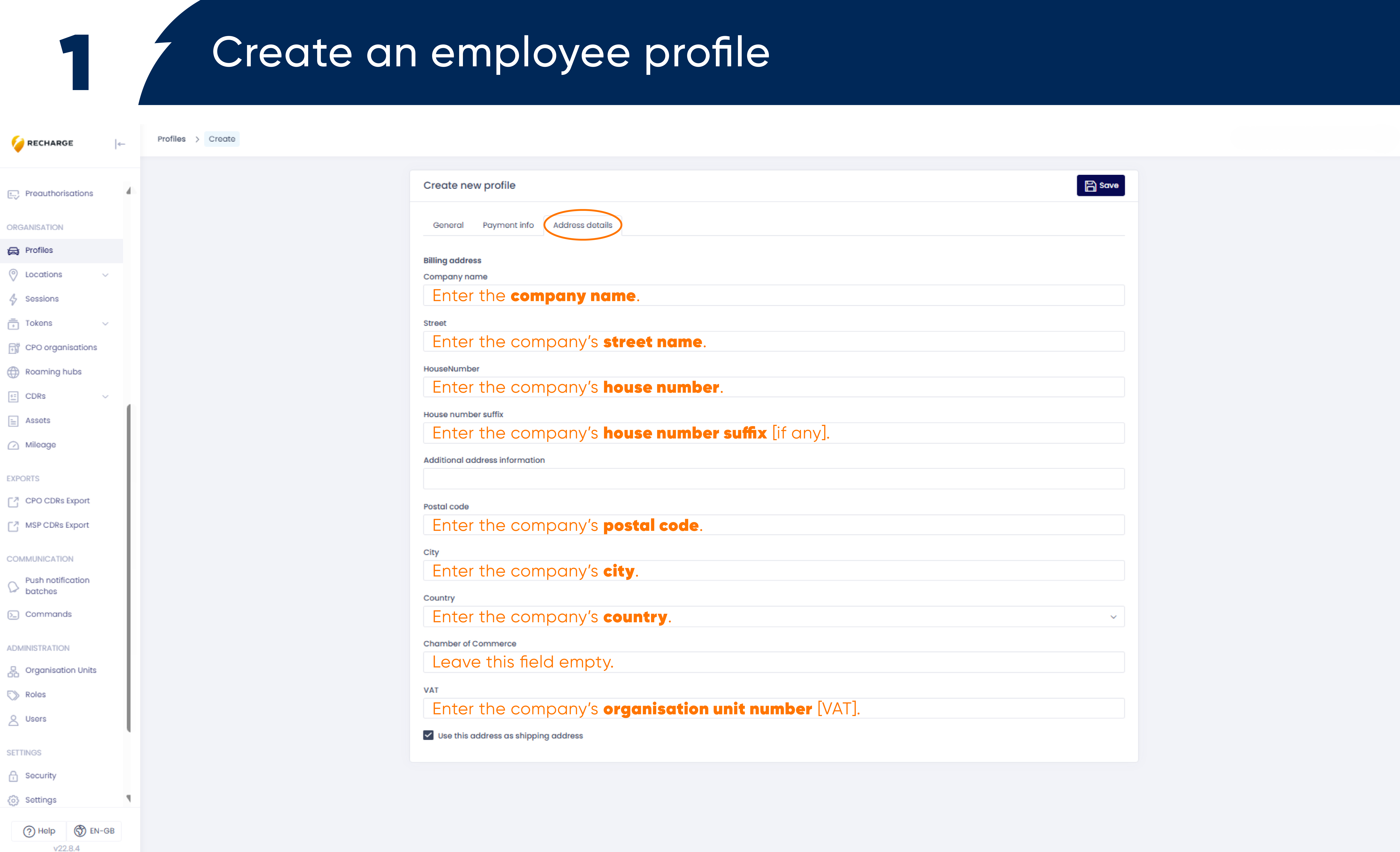
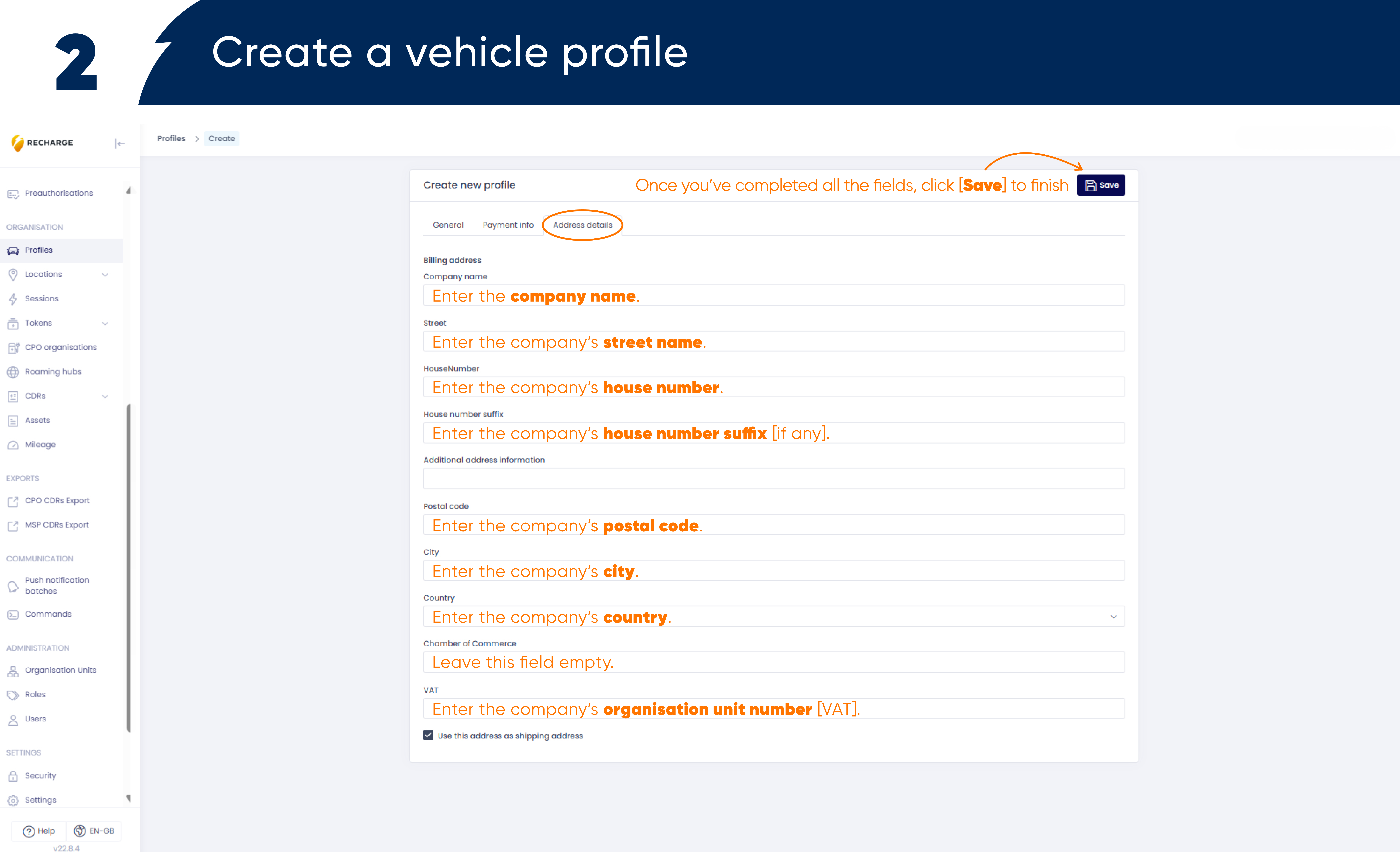
Fill out address details
Step 5
Once you’ve completed all the fields, clic [Save] to finish
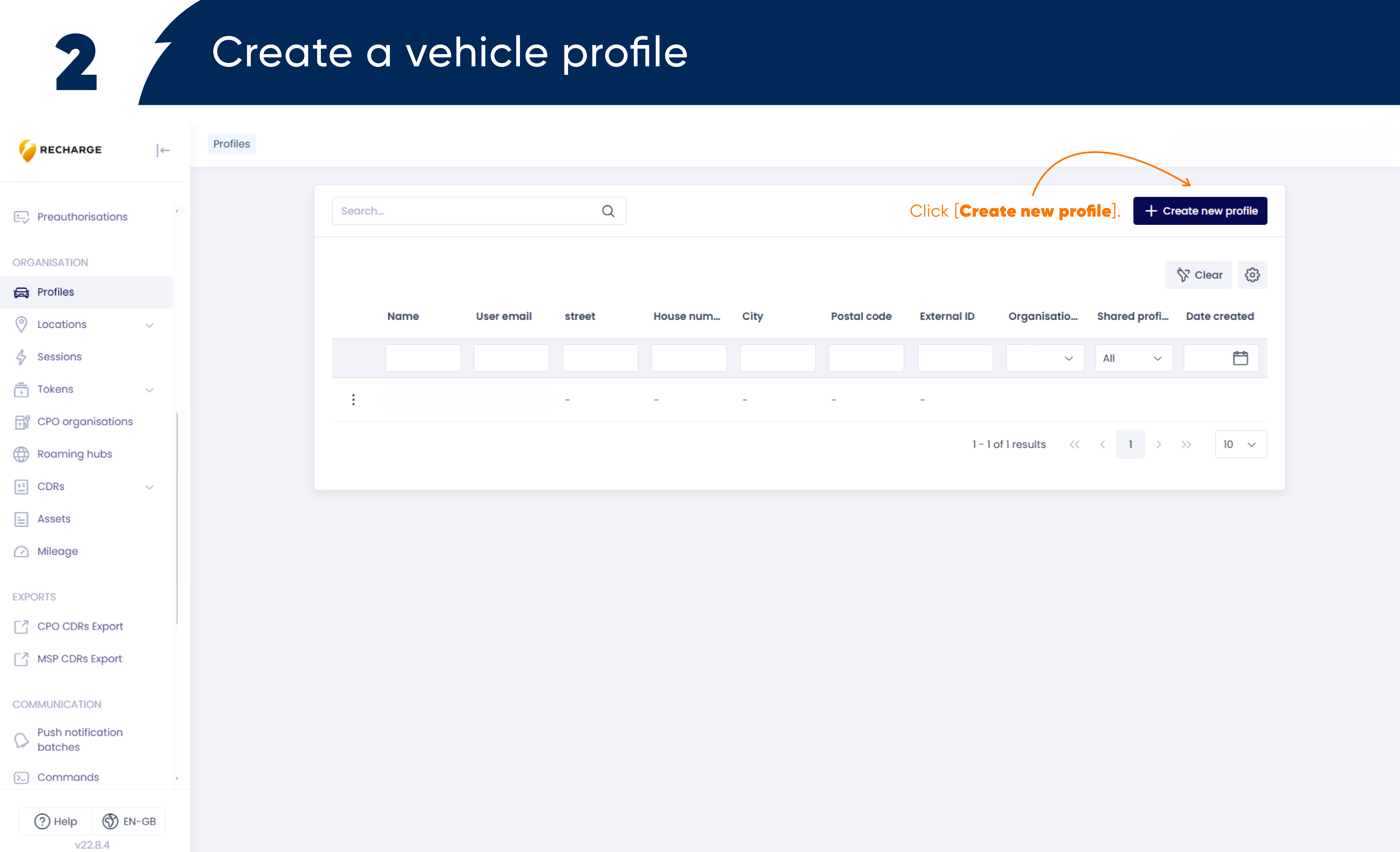
Create a driver profile
Step 1
In profiles – create an employee profile by clicking [+ Create new profile]
Step 2
Follow the steps, fill out the form fields, and click [+ Create]
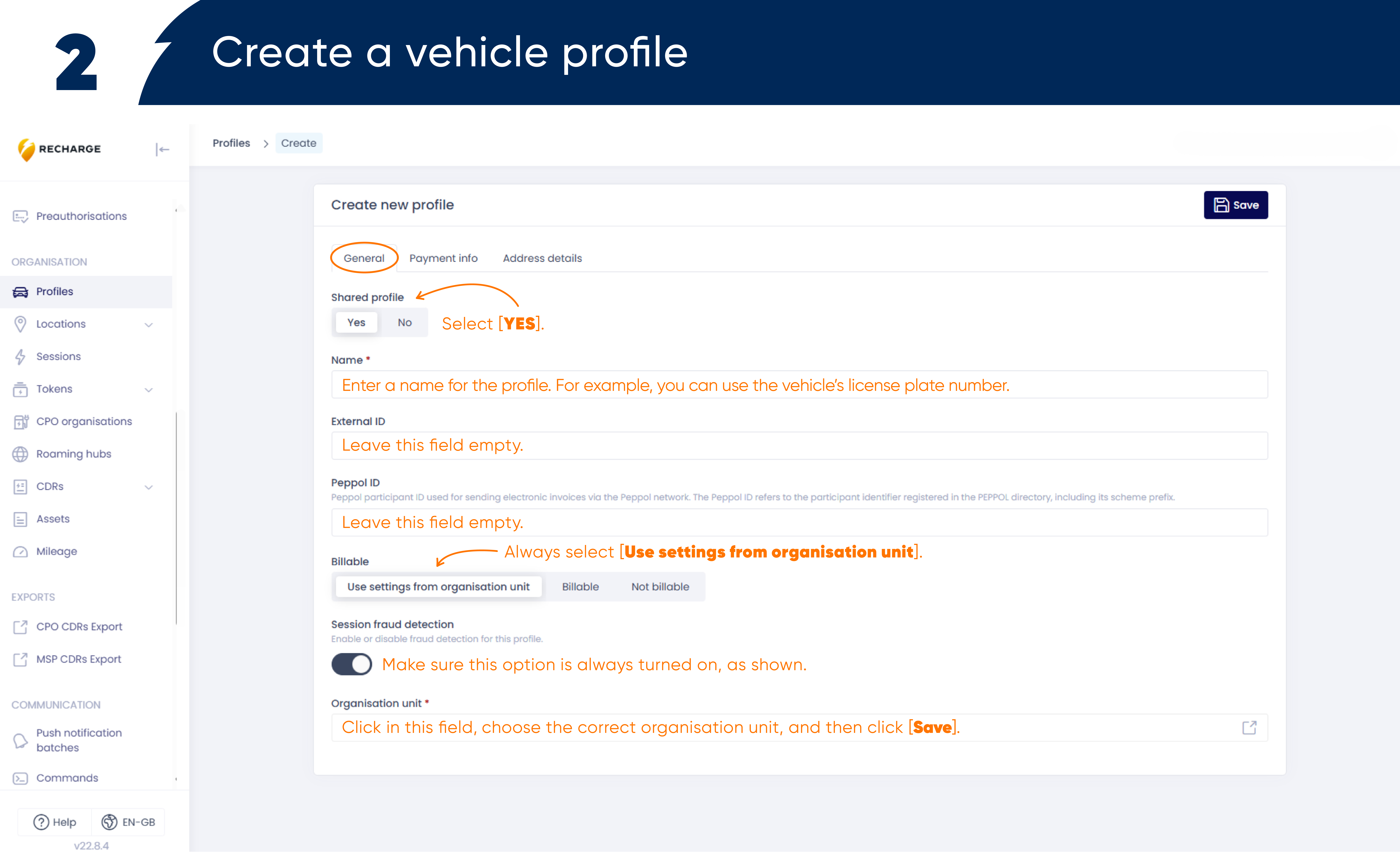
Step 3
Follow the steps, fill out the form fields, and click [Save]
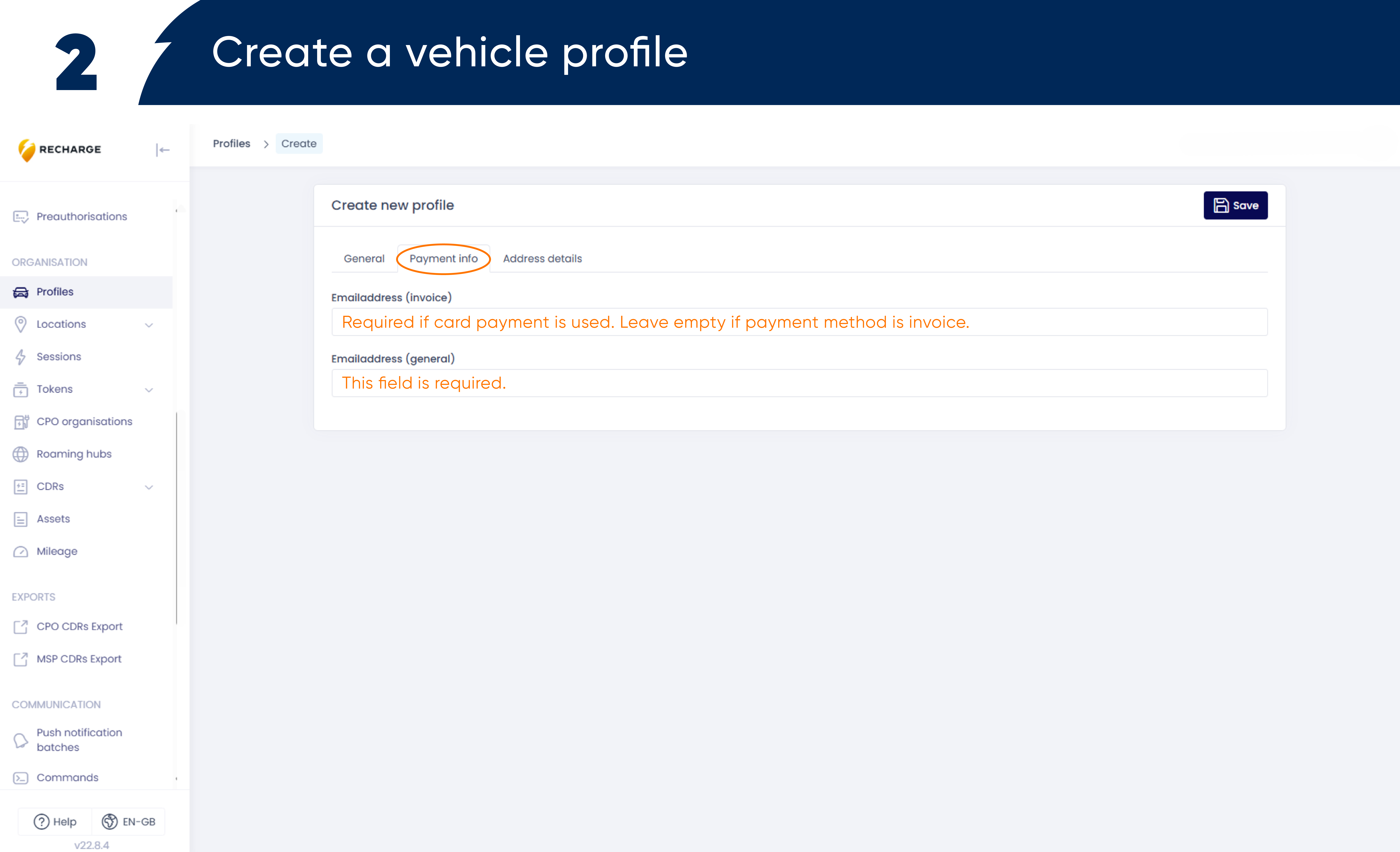
Step 4
Fill out address details
Tokens
Manage tokens easily in the Business Portal.
Order tokens
Step 1
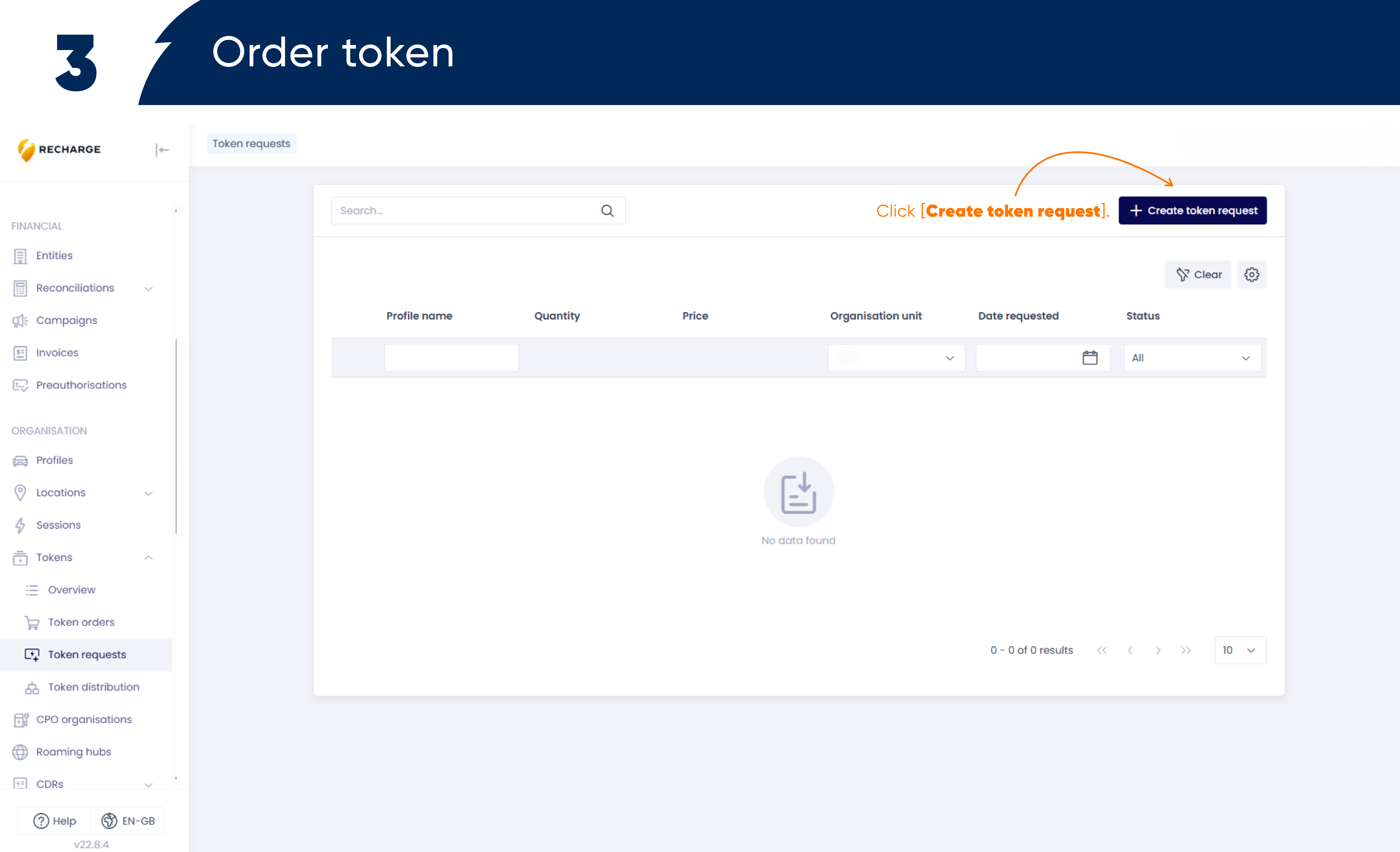
Under tokens, click [+ Create token request]
Step 2
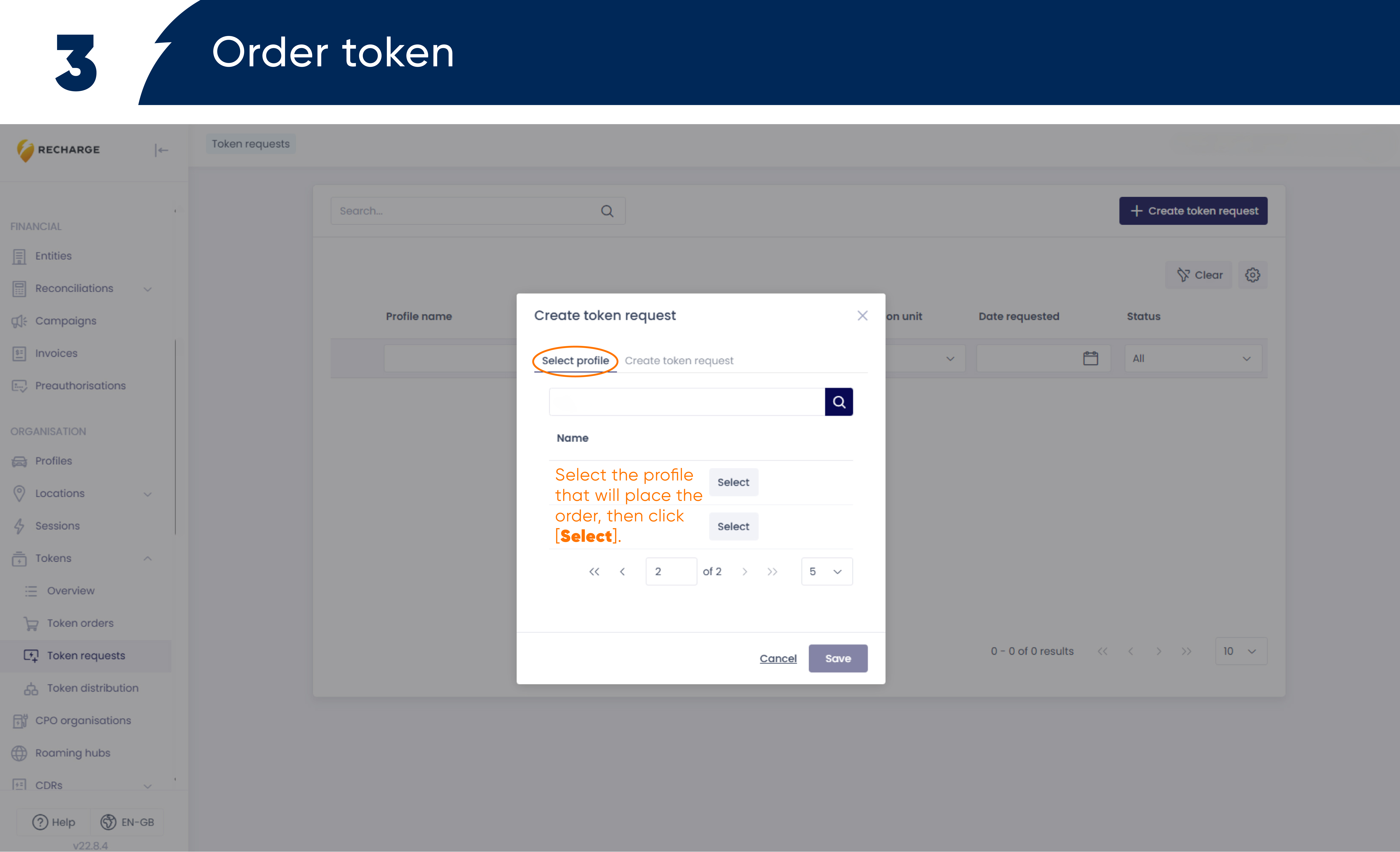
Select the profile that will place the order, then click [Select]
Step 3
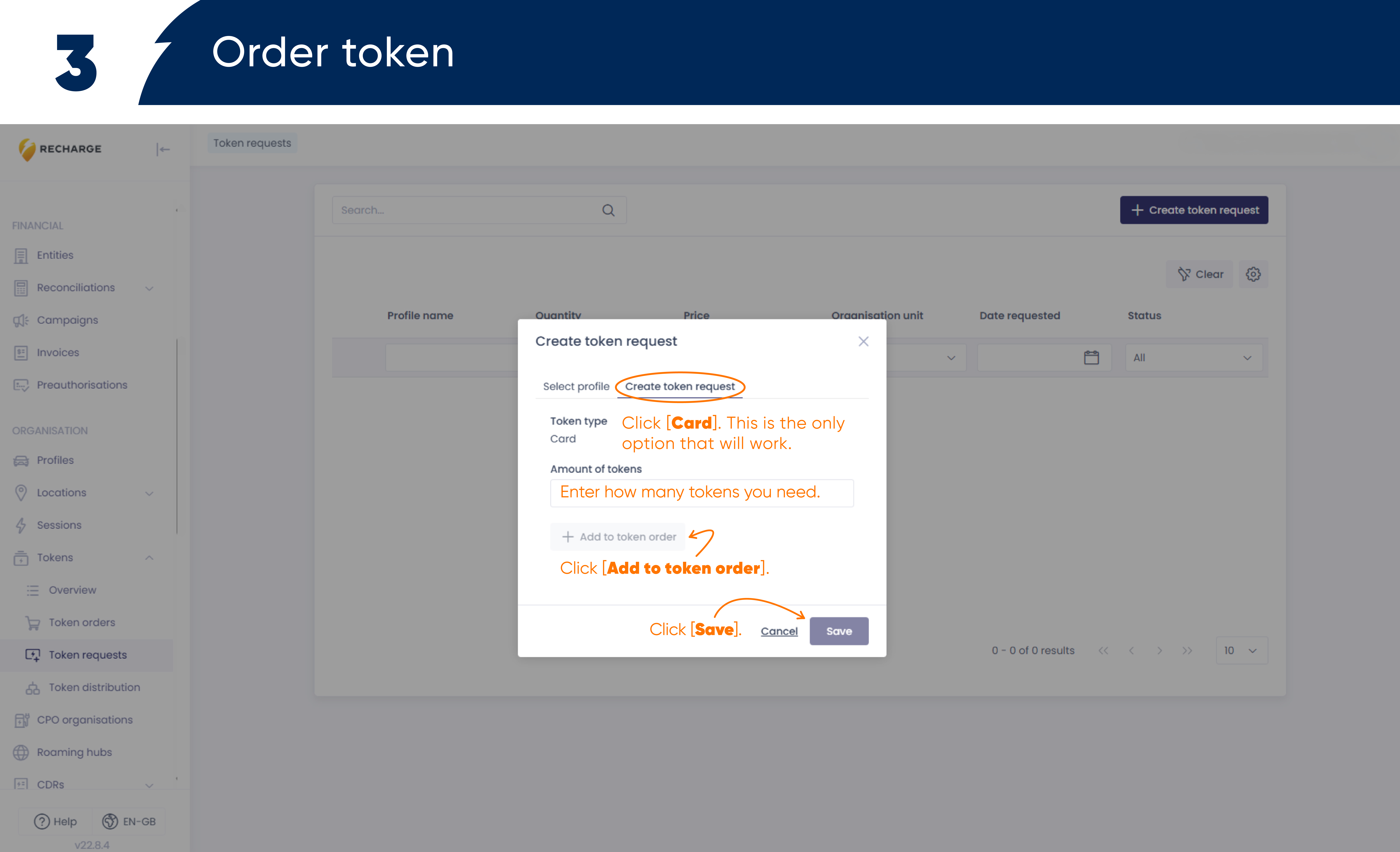
Create token request – click [Card]
Assign tokens
Step 1
Assign token
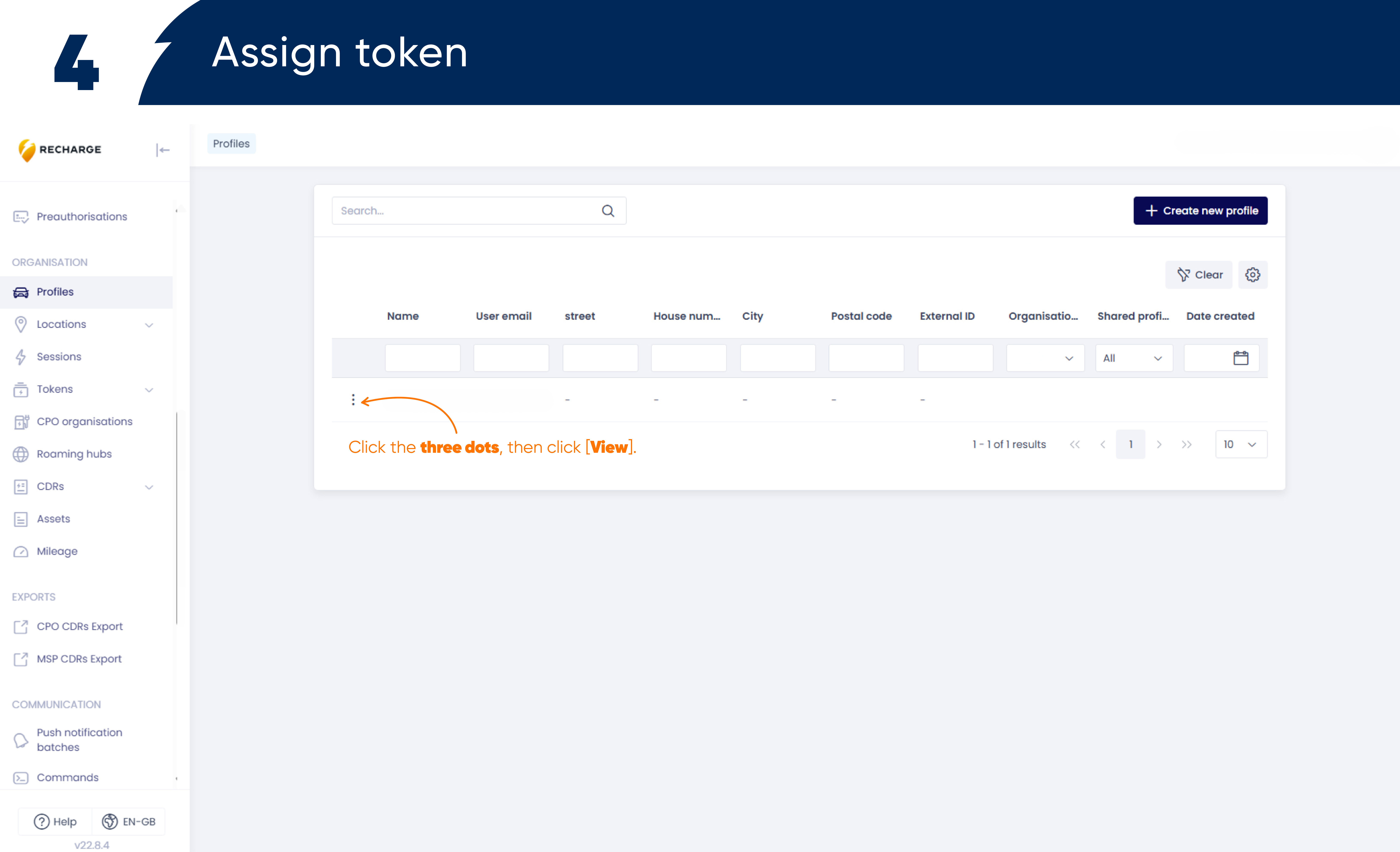
Step 2
Follow the steps, fill out the form fields, and click [+ Create]
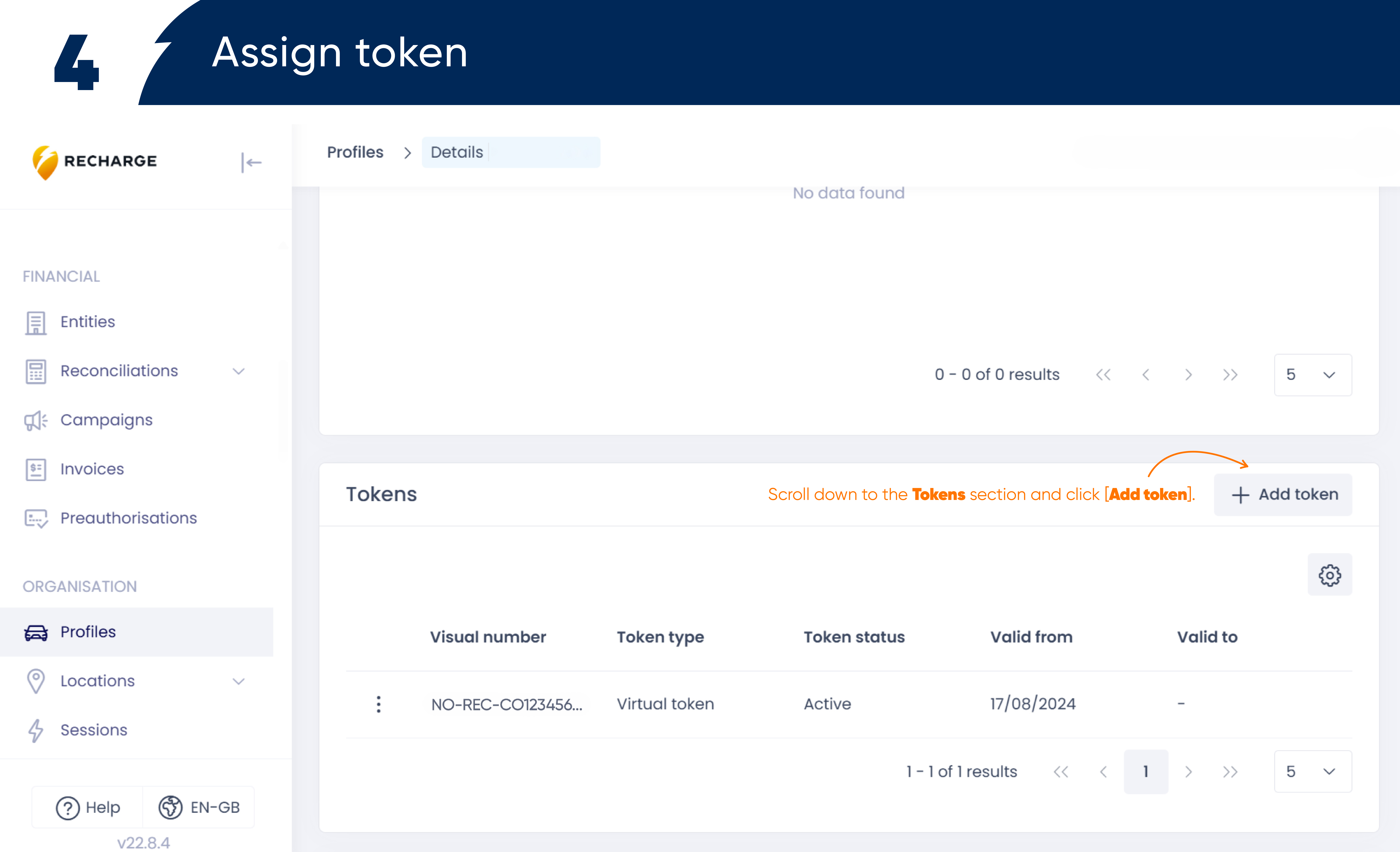
Step 3
Follow the steps, fill out the form fields, and click [Save]
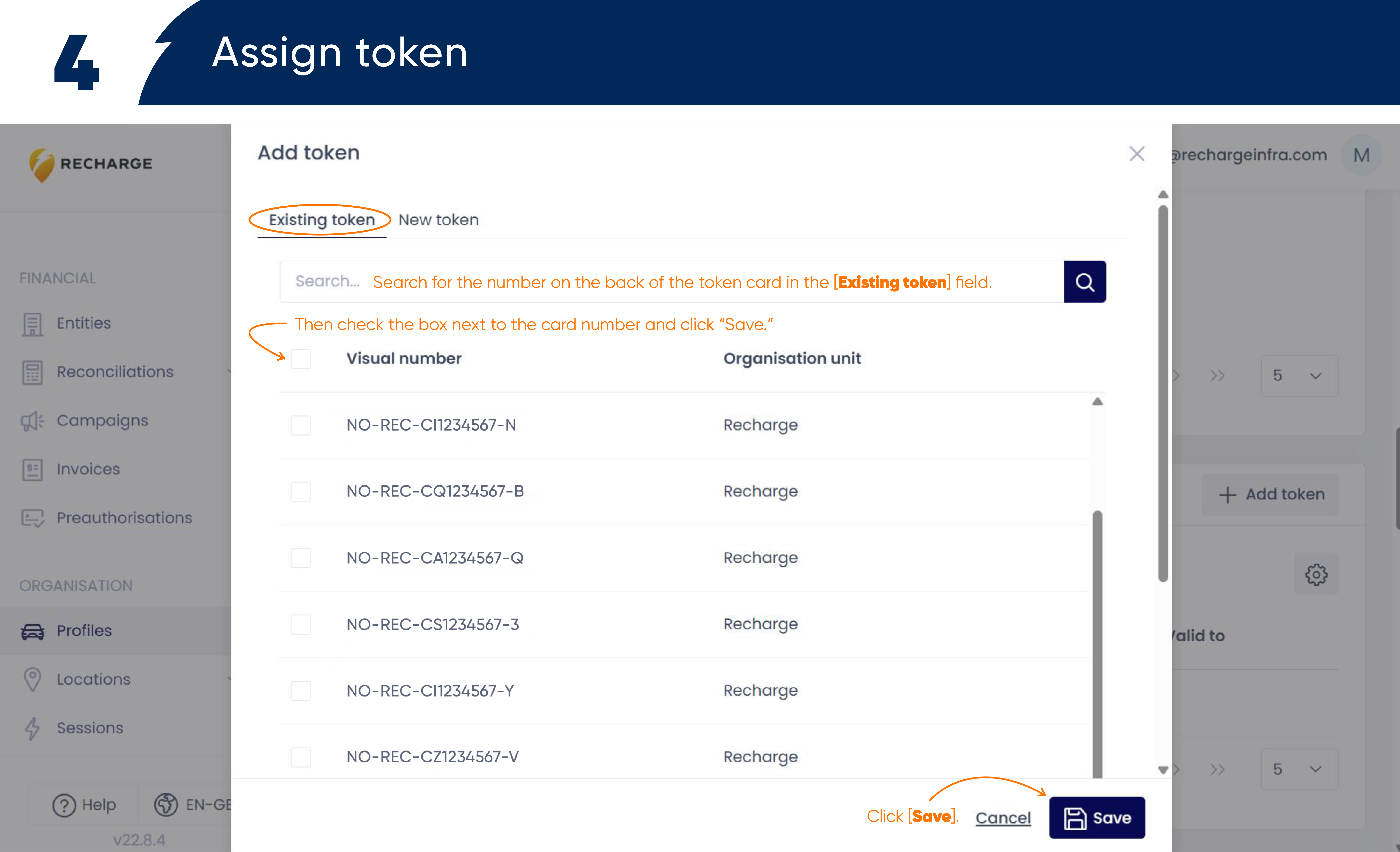
Deactivate tokens
Step 1
In profiles – click the three dots, then click [View]
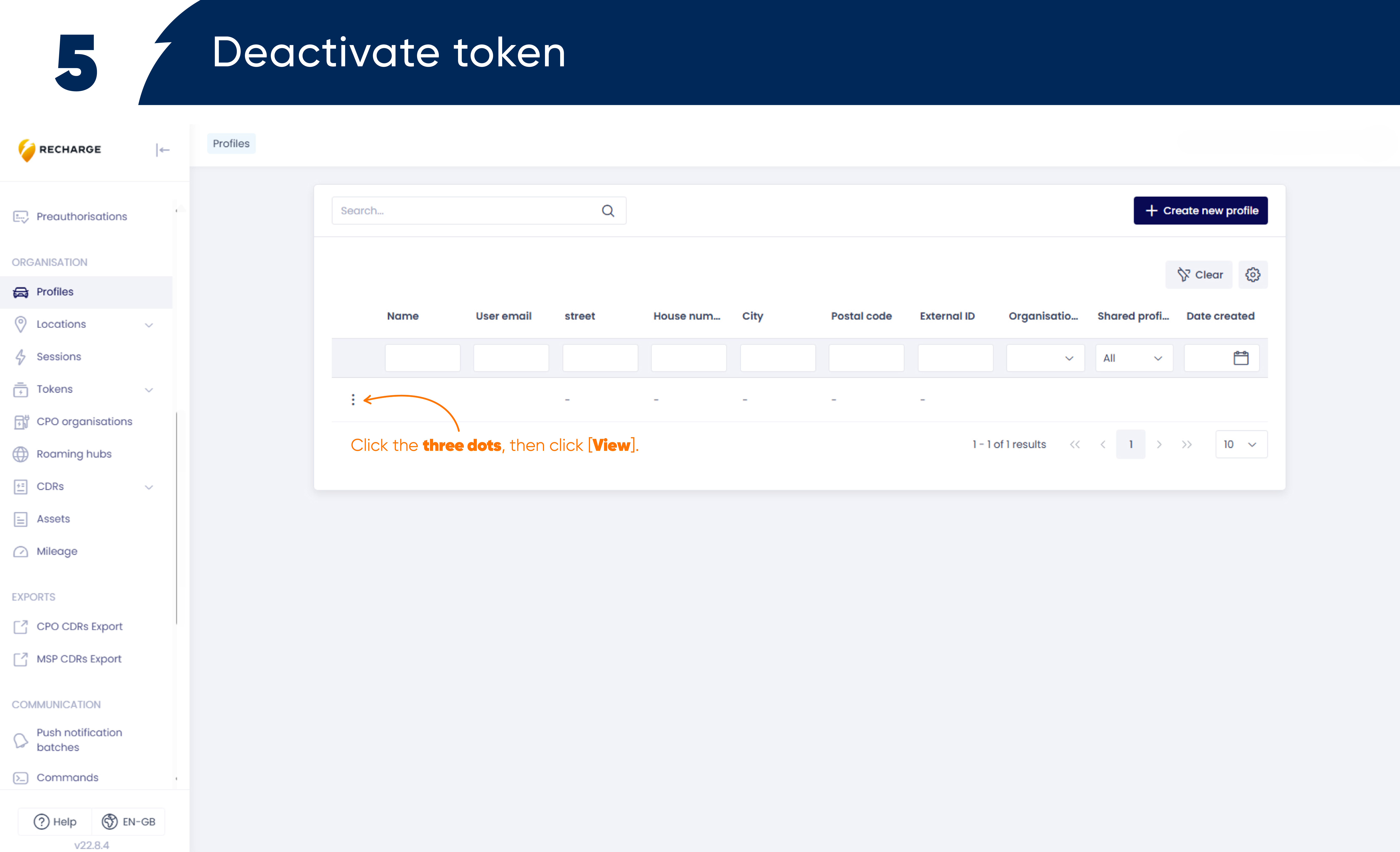
Step 2
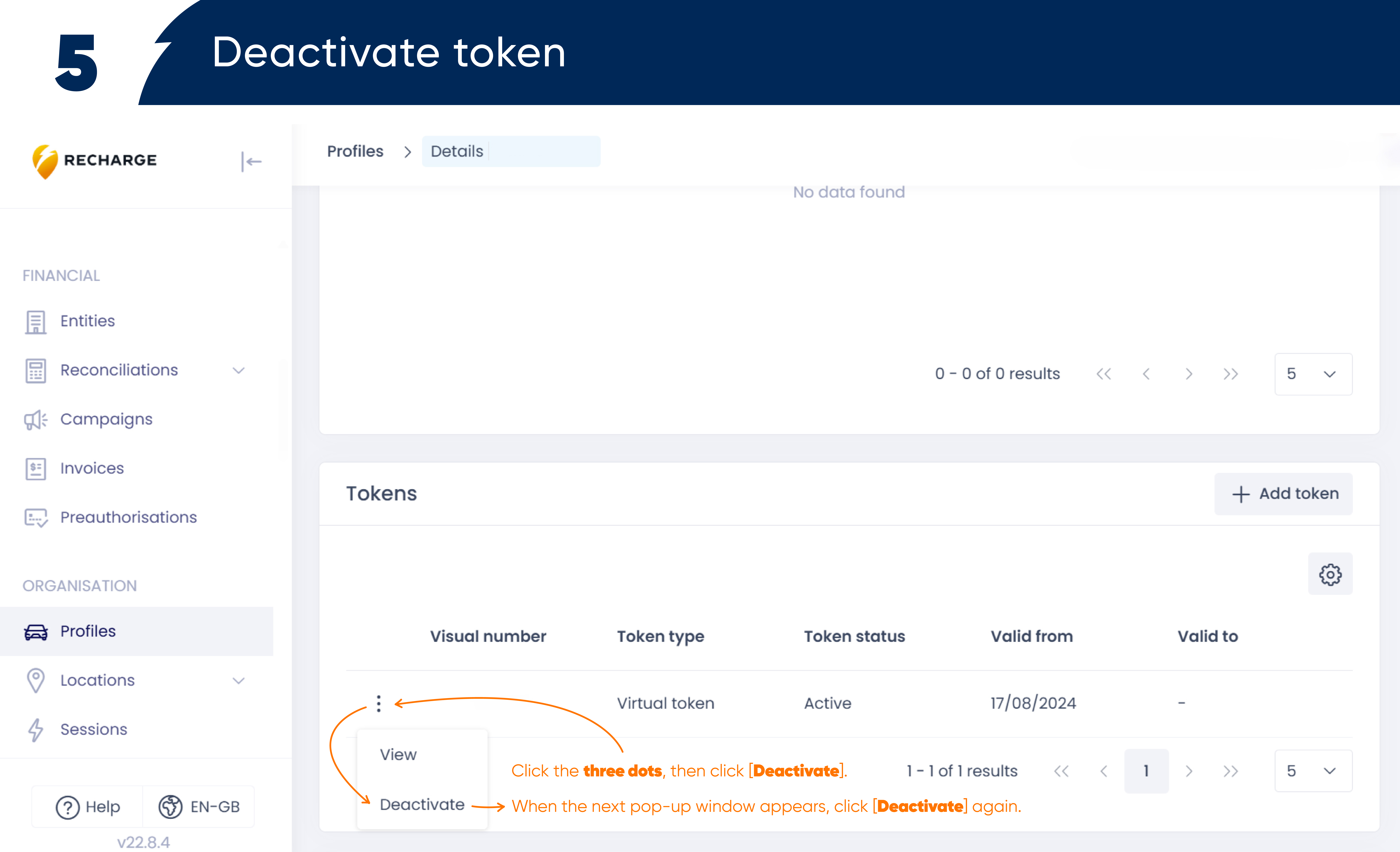
Click the three dots, then click [Deactivate]. When the next pop-up window appears, click [Deactivate] again.
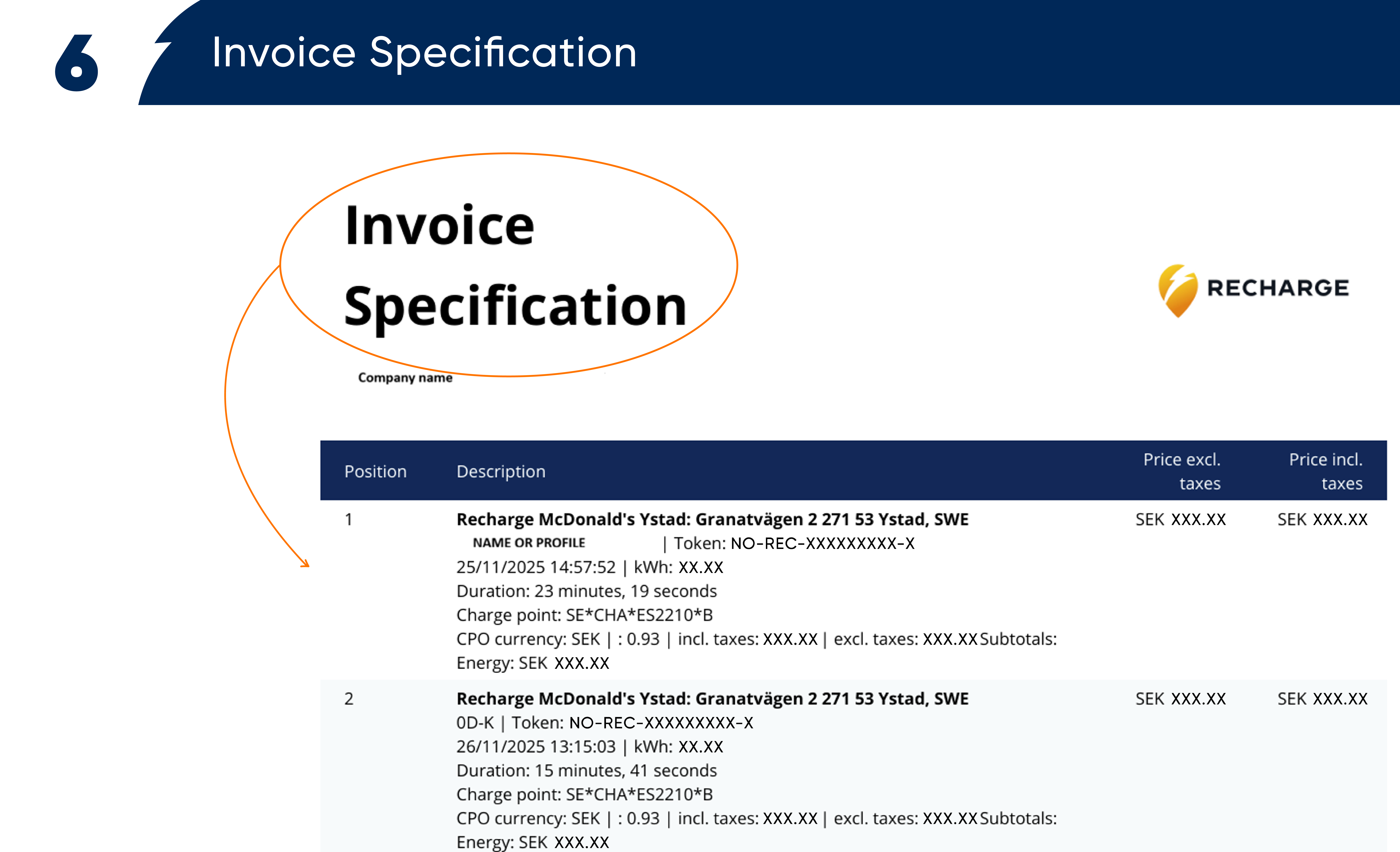
Invoice specification
Step 1
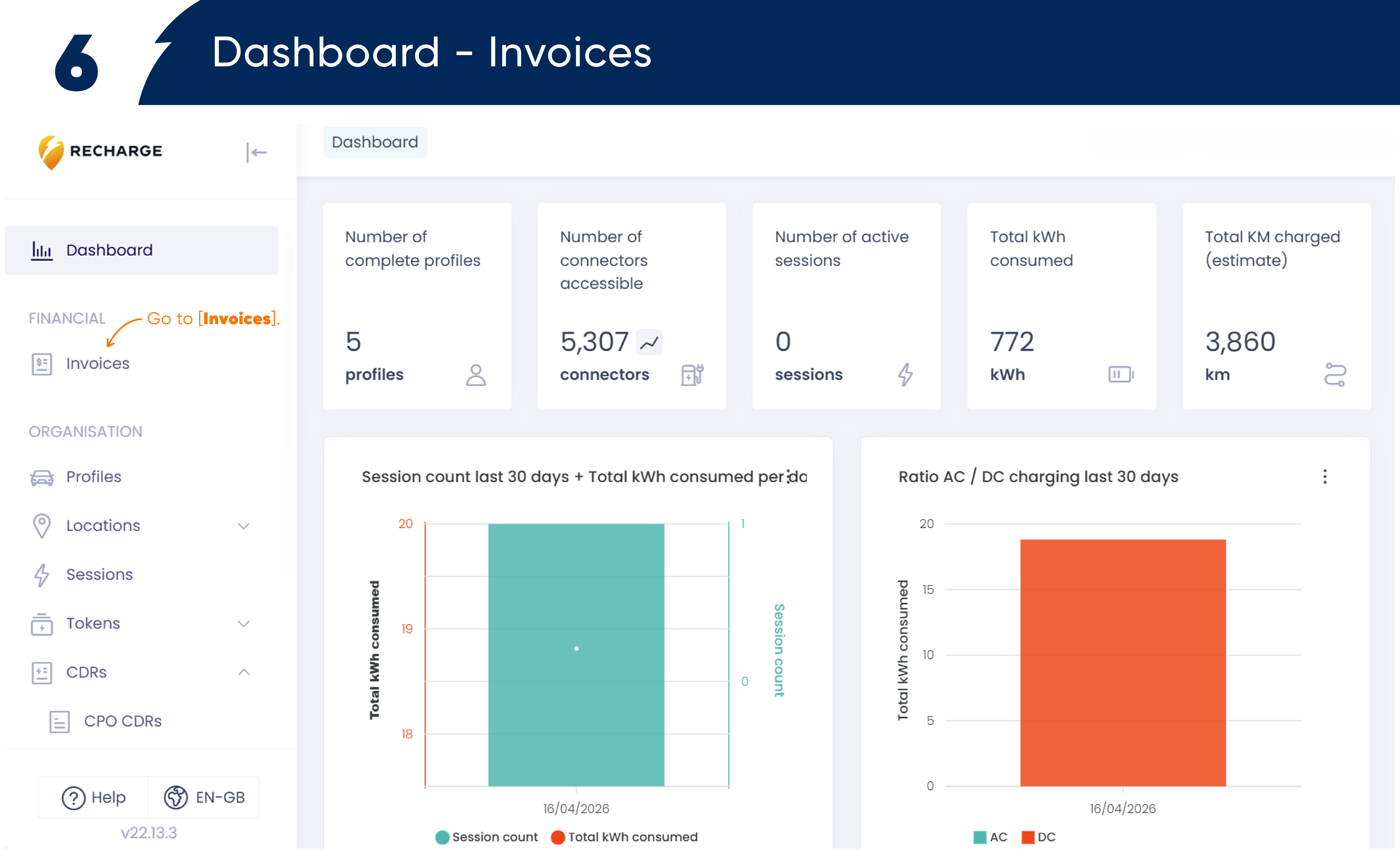
Go to [Invoices]
Step 2
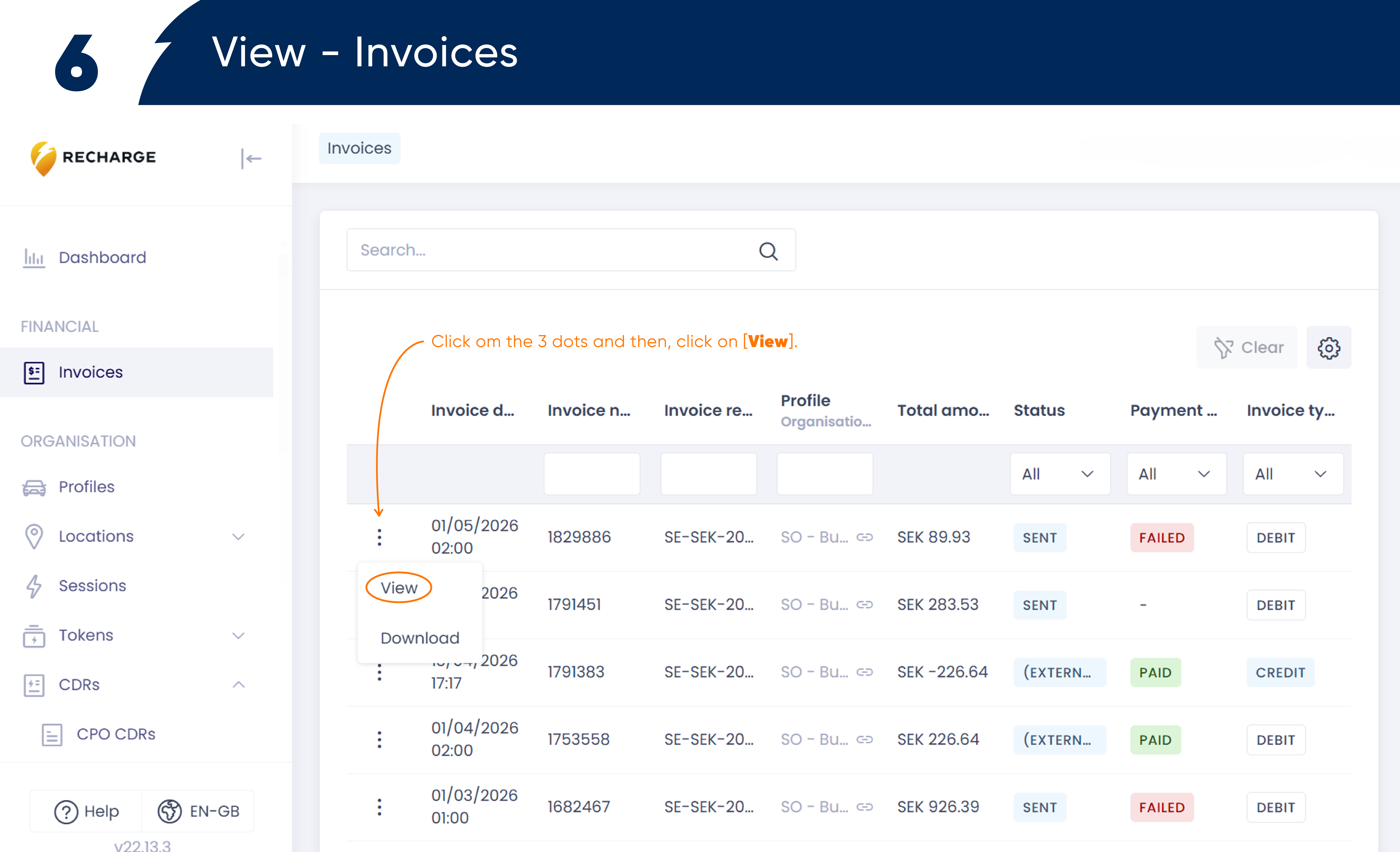
Click the three dots, then click [View]
Step 3
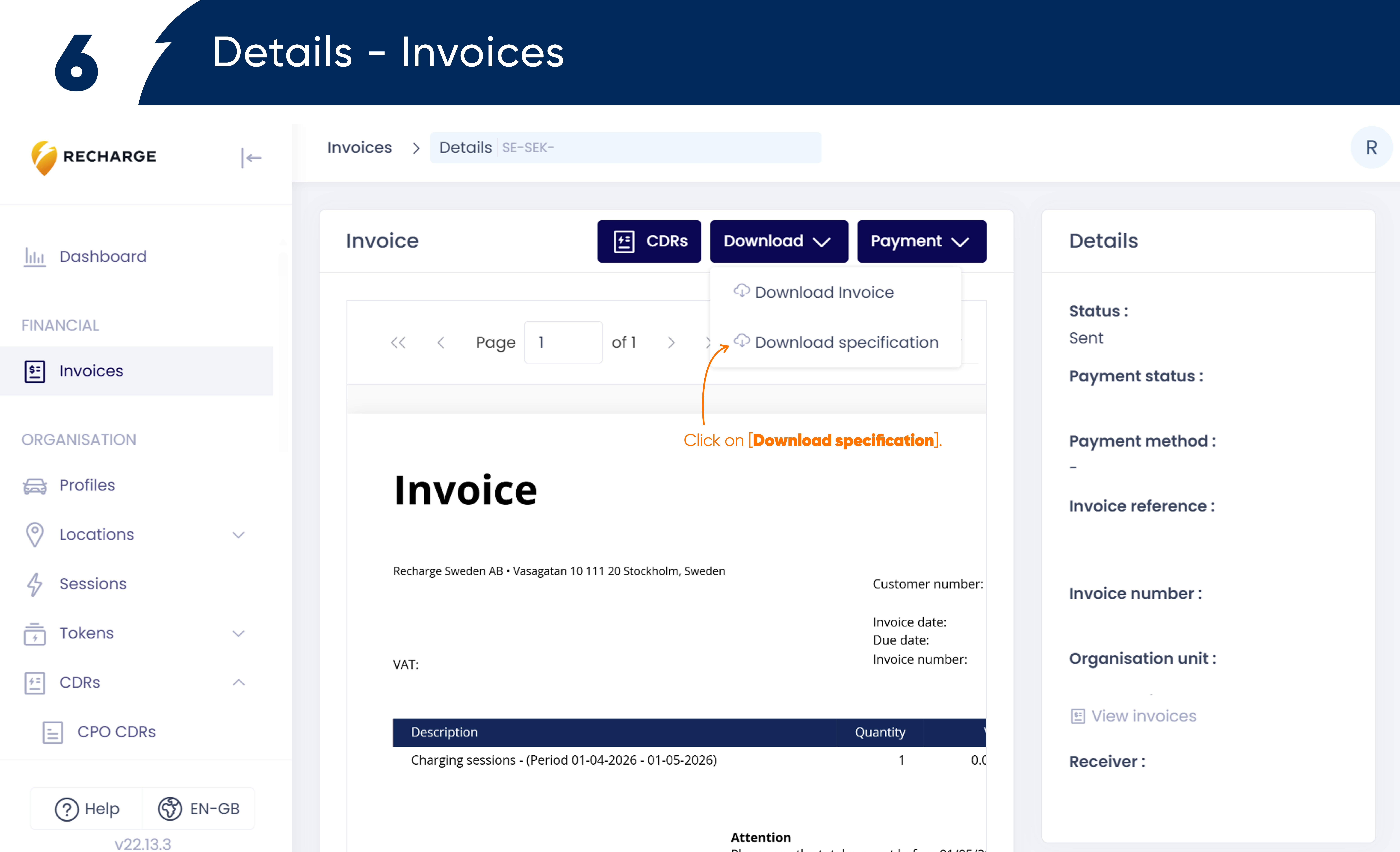
Click on [Download specification]
Step 4
Invoice specification.

Do you still have questions?
Can’t find what you’re looking for? Feel free to contact us – we’re happy to help!